

| Time to Read | ~8 minutes |
| What You’ll Learn |
|
| Next Steps |
|
Are you wondering, “Can I send a fax using Google Voice?”
Short answer, “yes.”
But it’s fairly complicated.
That leaves some to question whether it’s really their best option.
Firstly, it’s important to know that your Google Voice number is VoIP (Voice over Internet Protocol). That means it doesn’t have the capability to fax directly or through an online fax service or app. Instead, you have to use a workaround.
The process takes time and is not always straightforward. If you need a quick, solid alternative, consider using a ready-to-go service like FaxBurner, which gives you a fax number and lets you use your phone or email to fax.
To help you better understand the process of faxing using Google Voice, we’ve outlined the steps to take below.
What is Google Voice Fax?
Google Voice is a free service that lets you make calls, send texts, and manage voicemail through the internet using a virtual phone number. However, it doesn’t have built-in fax capabilities because it operates via VoIP (Voice over Internet Protocol), which isn’t compatible with the analog signals required for traditional faxing.
That said, you can still send a fax using Google Voice by pairing it with online fax services like FaxBurner. These services make it easy to send and receive faxes while integrating with your Google Voice setup seamlessly.
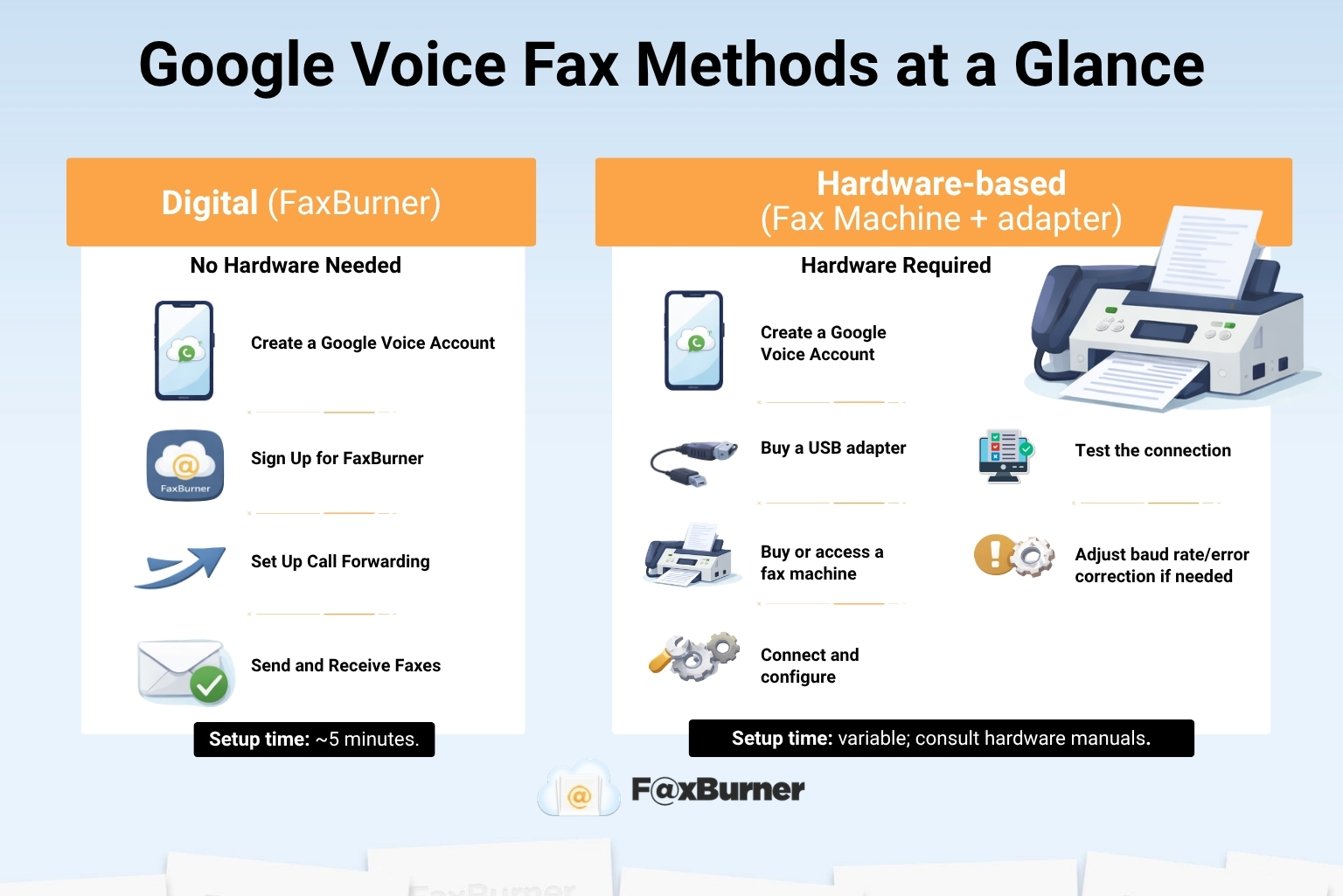
Here’s how all the methods compare before we walk through each one:
| Method | Hardware Needed | Complexity |
|---|---|---|
| Google Voice + FaxBurner (digital) | None | Low. Set up call forwarding, fax via app or email |
| Google Voice + fax machine + adapter | Fax machine, USB adapter, landline | High. Hardware-dependent, requires manual setup |
| Gmail + FaxBurner (no Google Voice) | None | Very low. Send fax as an email attachment |
| Google Drive / Docs / Sheets + FaxBurner | None | Low. Download and attach, or use an add-on if available |
How to Set Up Google Voice Fax
- Create Your Google Voice Account: Go to Google Voice. Sign in with your Google account and follow the steps to select your virtual Google Voice number.
- Sign Up for FaxBurner: Go to our website or download the FaxBurner app to set up your account. Once you’ve done this, you can get your FaxBurner fax number and easily send and receive faxes through your smartphone or computer.
- Connect Your Google Voice Number: In your Google Voice settings, set up call forwarding to your FaxBurner fax number. This way, any faxes sent to your Google Voice number will be automatically forwarded to us, allowing you to receive them digitally.
- Start Faxing: Once everything is linked, you’re ready to start sending and receiving faxes using your Google Voice number through our service.
How to Send a Fax with Google Voice and FaxBurner
- Log in to Your FaxBurner Account: Access your FaxBurner account through the app or website to get started.
- Upload Your Document: Before uploading, save your document as a PDF (you can use built-in conversion options on your device if needed) or use your phone camera to create your document via your smartphone camera.
- Enter the Recipient’s Fax Number: Once your document is ready, input the fax number of the recipient. Fill in the cover sheet information if desired. Be sure to double-check for accuracy before proceeding.
- Send the Fax: After reviewing your details, hit send. You’ll receive a notification confirming successful delivery once the fax goes through.
How to Receive Faxes with Google Voice
- Set Up Call Forwarding: In your Google Voice settings, enable call forwarding to your FaxBurner number so that incoming faxes are automatically redirected to your inbox.
- Receive the Fax: Once forwarded, any faxes will show up in your inbox as PDF files. From there, you can view, download, or print them as needed.
Using Google Voice With a Fax Machine
One way to use Google Voice to fax is in conjunction with a fax machine.
Of course, that means you must either have access to a fax machine or you must purchase one. That’s a bit counterintuitive, as this also assumes you have a landline from which to fax. Nevertheless, if you want to send a fax over a machine using a Google Voice number, you can.
Here’s what you need:
- An active Google Voice account and phone number.
- An adapter to connect your landline phone to a USB port on your computer. Make sure this adapter is compatible with Google Voice.
- A computer with a fax modem, or a dedicated fax machine.
Next Steps to Send And Receive Faxes Via Fax Machine
These steps are pretty proprietary. They will depend largely on the adapter you purchase, your fax machine, and other factors. You’ll need to consult the manual on the adapter that you purchase. If you use a fax modem, you might need to adjust the settings on that as well. Think of these as some general steps to get you started on faxing from Google Voice.
- Plug your landline phone into your adapter, or the fax machine if that connects directly.
- Read the instructions that come with the adapter you’ve purchased. Every adapter works just slightly differently.
- Test the connection by connecting a landline phone to the adapter. See if you can send and receive calls using your Google Voice number. If this doesn’t work, refer back to your adapter or call customer support.
- Unplug the landline phone, and plug the USB adapter into your fax machine. You may want to test the fax machine handset if it exists.
- Try to send a fax to someone as a test. You can also ask them to send a fax back using your Google Voice number.
- Begin making adjustments to the fax machine itself if you aren’t receiving faxes or are unable to send them. You may have to adjust the baud rate or the error correction mode. Here, you will have to refer to your fax machine documentation or contact a service provider.
Repeat the steps above as needed until you can send and receive faxes.
Why Use FaxBurner with Google Voice?
- Easy to Use: With FaxBurner, you can send and receive faxes right from your phone or computer. No need for bulky fax machines or being tied to a specific location; you can fax from anywhere, whether you’re at home, the office, or on the go.
- Cost-Effective: FaxBurner offers both free and affordable plans, so you don’t have to deal with the costs of maintaining a fax machine, buying paper, ink, or paying for an extra phone line.
- Simple Integration: It’s easy to link your Google Voice number with FaxBurner so faxes come straight to you, without the hassle. Set up call forwarding, and you’re good to go.
- No Extra Gear Required: You don’t need a fax machine or any special equipment. Just your smartphone or computer and an internet connection.
Faxing From Google Apps With FaxBurner
If you already use Gmail, Google Drive, Google Docs, or Google Sheets, you don’t need to go through Google Voice at all. FaxBurner integrates directly with Google’s apps, making the process even simpler.
How to Fax from Gmail
- Choose a third-party fax service and create an account using your Gmail account.
- Create a new email in Gmail and insert [email protected] as the recipient. Add the actual recipient’s fax number as the subject line.
- Attach the document you want to fax to the email, ensuring it’s in a compatible format, such as PDF or DOCX.
- Add any additional notes or a cover sheet to the email if necessary.
- Click “Send” to send the fax. FaxBurner will convert your email and attached document into a fax and send it to the recipient’s fax machine. You’ll receive a confirmation email letting you know whether the fax was successful.
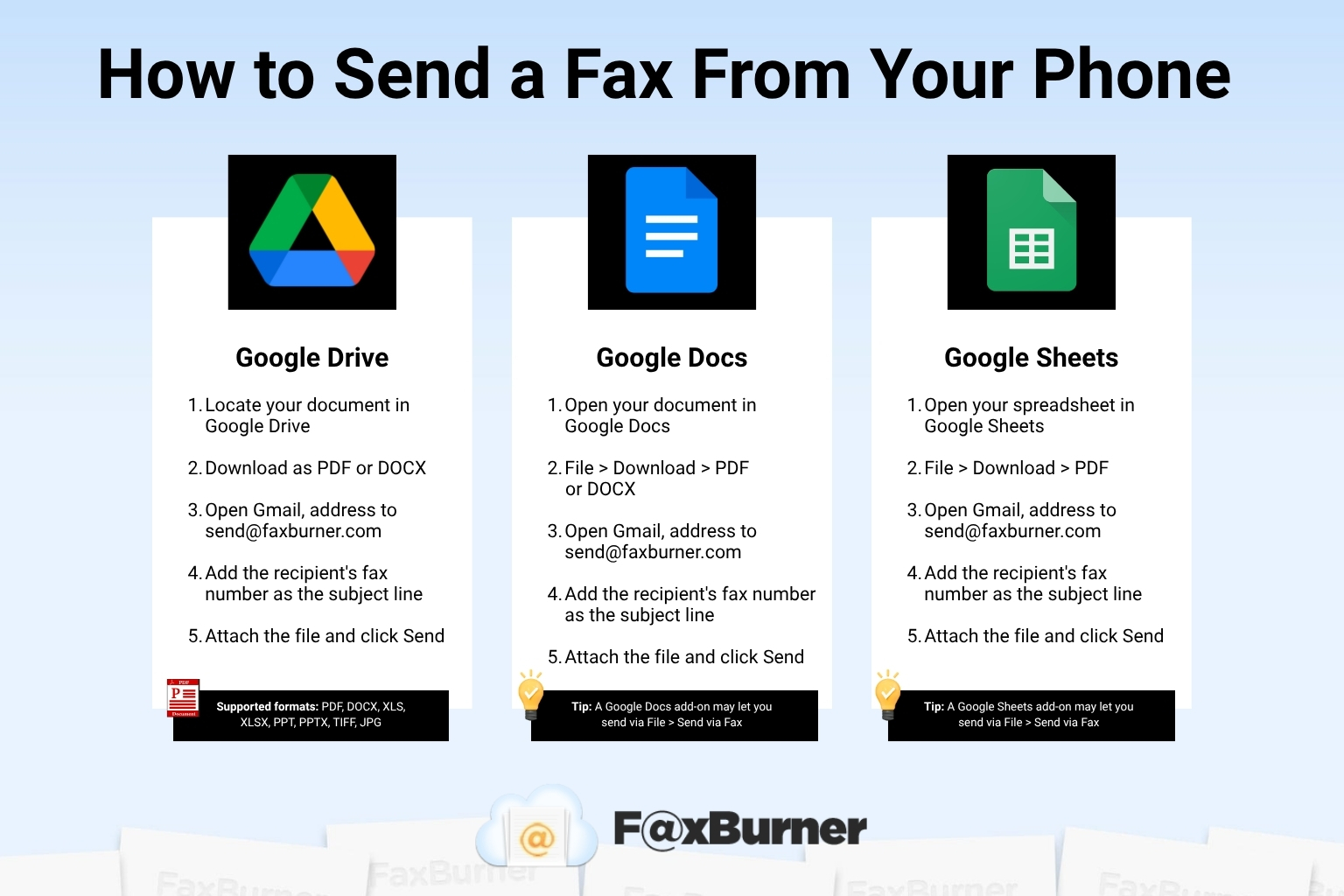
How to Fax from Google Drive
- Locate the document you want to fax in your Google Drive. Ensure it’s final and properly formatted.
- Download the document. Right-click and select “Download,” and choose a compatible file format such as PDF or DOCX.
- Open Gmail and compose a new email. Add [email protected] as the recipient, and use the recipient’s fax number as the subject line.
- Attach the downloaded document to the email. Include a cover sheet or additional notes in the email body if needed.
- Click “Send.” FaxBurner will convert the email and attached document into a fax and forward it to the recipient’s fax machine. A confirmation email will follow.
Alternatively, if your online fax service has a Google Drive add-on installed, you can right-click the document, select “Open with,” choose your fax service, enter the recipient’s fax number, and send directly.
How to Fax from Google Docs
- Open the document you want to fax in Google Docs.
- Click “File,” then “Download,” and save the document as a PDF or DOCX.
- Open Gmail and compose a new email. Add [email protected] as the recipient and the recipient’s fax number as the subject line.
- Attach the downloaded file, add any cover sheet notes to the email body, and click “Send.”
If your fax service has a Google Docs add-on, you may also be able to go to File > Send via Fax directly from within the document.
How to Fax from Google Sheets
- Open the spreadsheet you want to fax in Google Sheets.
- Click “File,” then “Download,” and save as PDF.
- Open Gmail, address the email to [email protected], and use the recipient’s fax number as the subject line.
- Attach the downloaded file and click “Send.”
As with Docs and Drive, a Google Sheets add-on for your fax service may allow you to send directly via File > Send via Fax, if available.
Why Fax Using a Mobile Device?
Whether you’re using Google Voice, Gmail, or the FaxBurner app directly, mobile faxing has some clear advantages over traditional methods:
- Convenience: Send and receive faxes from your smartphone or tablet from anywhere with an internet connection, no fax machine needed.
- Cost savings: No dedicated fax line, no fax machine, no paper or ink.
- Faster response times: Send and receive faxes in real time to address urgent matters quickly.
- Easy organization and storage: Faxes are stored digitally, searchable, and accessible from any device.
- Environmentally friendly: Reduces paper waste and eliminates the need for physical document storage.
- Integration with other tools: Works with Google Drive, Dropbox, and other platforms, making it easy to fax directly from where your files live.
Faxing with Google Voice Alternative
Fortunately, you can send and receive faxes using the Gmail account associated with your Google Voice number without actually using Google Voice at all.
For most people, the simplest solution is to use an online fax service. By signing up for such a service with your Gmail account, you can use that email address to manage your faxing needs. This will allow you to send and receive faxes via mobile app, email, or on your computer. You can also receive notifications in your Gmail account when faxes are sent or received.
FaxBurner’s online faxing service is a great choice and offers both free and paid account levels depending on your faxing needs. Sign up with your Gmail account (or any email address) today.
Frequently Asked Questions
Can I Use Google Voice Alone to Send Faxes?
No, Google Voice does not support direct faxing because it operates via VoIP, which isn’t compatible with traditional faxing. You’ll need an online fax service like FaxBurner to send and receive faxes.
Do I Need a Fax Machine to Send Faxes With Google Voice?
No, with FaxBurner, you can send faxes digitally using your phone or computer. There’s no need for a fax machine or additional hardware.
How Can I Receive Faxes on My Google Voice Number?
You can receive faxes by setting up call forwarding from Google Voice to your FaxBurner fax number. Any incoming faxes will automatically be delivered to your FaxBurner inbox as PDF files.
How Do I Know If My Fax Was Sent Successfully?
After sending your fax with FaxBurner, you will receive a confirmation notification indicating whether the fax was successfully delivered to the recipient.
