
| Time to Read | ~5 minutes |
|---|---|
| What You’ll Learn |
|
| Next Steps |
|
In today’s fast-paced digital world, the ability to communicate quickly and efficiently is paramount for businesses and individuals alike. While email has become the primary means of communication, faxing remains relevant in certain industries and situations where a higher level of security, privacy, and legal compliance is required.
Gone are the days when faxing necessitated bulky, expensive machines and dedicated phone lines. Thanks to digital advancements, you can now send and receive faxes through your email.
How to Fax from Gmail
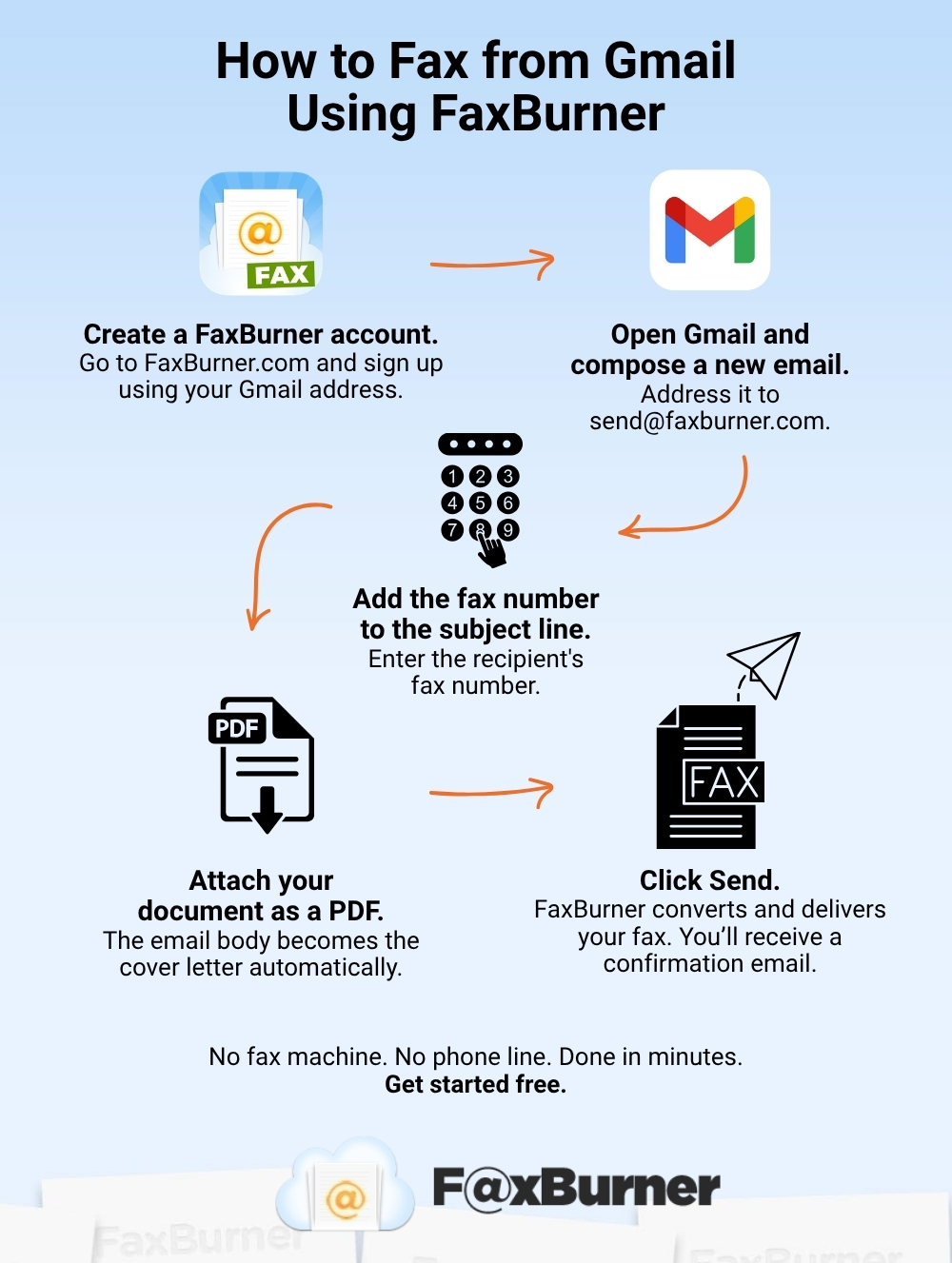
Unfortunately, at this moment, there isn’t a dedicated Google Fax service. To send a fax using Gmail, you’ll need to use a third-party fax service that’s compatible with Gmail. Here’s how to do it using FaxBurner:
- Sign up for FaxBurner: Go to the FaxBurner website and create a free account using your Gmail login credentials. Once registered, click the button to reserve your fax number.
- Compose a new email: Open Gmail and compose a new email. In the recipient field, enter [email protected]. In the subject line, enter the recipient’s fax number.
- Attach the document: Click the “Attach files” icon, then select the document you want to fax. Ensure it’s in a compatible file format, such as PDF or DOCX.
- Add a cover sheet or notes (optional): Anything typed in the email body will become the cover letter of your fax.
- Send the fax: Click “Send.” FaxBurner will convert the email and attached document into a fax and deliver it to the recipient’s fax machine. You’ll receive a confirmation email notifying you of success or failure.
Sending a fax via email is a convenient and efficient way to transmit important documents without a physical fax machine. It saves time, and many providers offer affordable plans that let users send and receive faxes without extra fees.
What Will the Recipient See?
The process is completely transparent on the recipient’s end. They won’t see your email address. All they’ll see is the fax you sent and the fax number you sent it from. It appears exactly as if the fax had been sent from a physical fax machine.
Converting Your Document to PDF
When you send a fax from Gmail using FaxBurner, documents are transmitted as PDFs. Here are a few ways to convert if your document isn’t already a PDF:
- Most word processing software, including Word and Google Docs, can save or export directly to PDF.
- You can print any document to a PDF file using your operating system’s built-in print function.
- Free online PDF conversion tools are also available for batch processing.
Make sure to attach your PDF to the email before sending. If you forget to attach it, the recipient will receive only your cover letter based on the contents of the email body.
Are There Any Limitations?
Free FaxBurner accounts can receive 25 fax pages per month and send a total of five pages over the lifetime of the free account, which is enough for a one-off fax and to evaluate whether the service works for you. Free accounts also include a temporary fax number valid for 24 hours.
If you select a monthly plan, you’ll have the ability to keep your fax number permanently, and send between 500 and 2,000 pages per month.
Faxing from Gmail vs Traditional Faxing
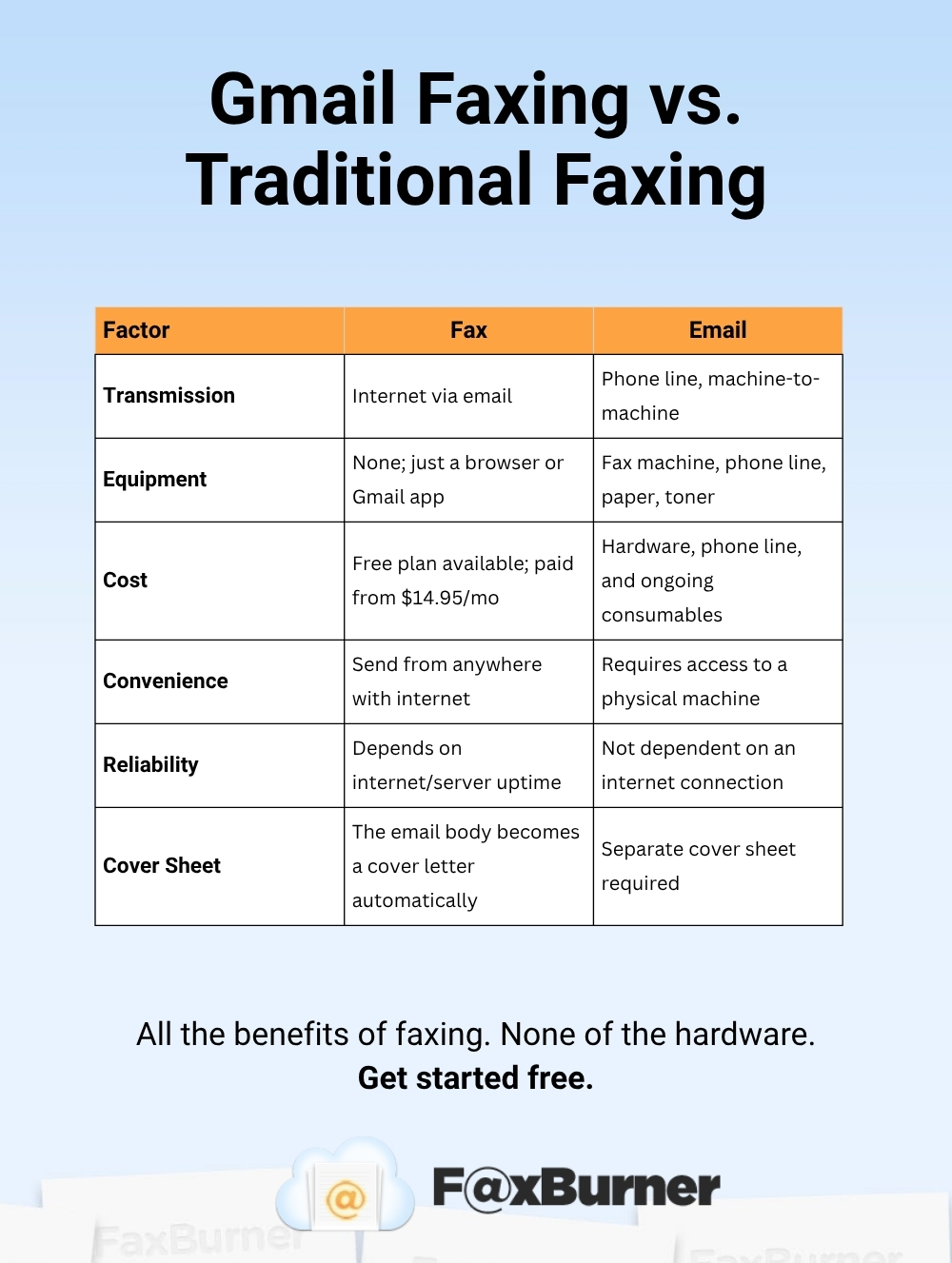
Online faxing and traditional faxing each have their advantages and disadvantages. Here’s how they compare:
Method of transmission: Traditional faxing involves the use of a physical fax machine that scans the document and transmits it over a phone line to the recipient’s fax machine. Online faxing, on the other hand, uses a mobile device and an internet connection to transmit the fax digitally.
- Equipment and infrastructure: Traditional faxing requires a physical fax machine and a phone line. This can be expensive to set up and maintain. Online faxing, however, requires only an internet connection and a computer, tablet, or mobile phone.
- Cost: Traditional faxing can be costly due to the need for a physical machine, paper, toner, and phone line charges. Online faxing, however, can be more cost-effective, as it eliminates the need for a physical machine and can be done through a third-party service, which often offers a free plan or a free trial.
- Convenience: Online faxing is more convenient than traditional faxing as it can be done from anywhere with an internet connection, using a computer or mobile device. Traditional faxing, however, requires access to a physical fax machine.
- Reliability: Traditional faxing may be more reliable, as it does not depend on an internet connection or server uptime. Online faxing may experience technical issues, such as slow transmission times or server downtime.
The Bottom Line
By eliminating the need for a physical fax machine and streamlining the faxing process, online fax service providers enable businesses and individuals to embrace the digital era without sacrificing the benefits of traditional faxing methods.
With its numerous advantages, including easy file management and environmental friendliness, FaxBurner’s Gmail faxing solution is a compelling choice for those seeking to modernize their communication infrastructure.
Gmail and FaxBurner: Frequently Asked Questions
Do I need to install any software or plugins to use FaxBurner with Gmail?
No, you do not need to install any software or plugins to use FaxBurner with Gmail. The service works seamlessly through your Gmail account, allowing you to send and receive faxes directly from your email inbox.
What file formats can I attach when sending a fax from Gmail?
FaxBurner supports PDF and image files (such as JPEG and PNG) as attachments. Ensure your documents are in one of these formats before attaching them to your email.
Can I send a free fax by email?
FaxBurner offers a free tier with limited monthly usage, allowing you to send up to five pages total, and receive 25 faxes per month from Gmail at no cost. For higher usage and additional features, a paid plan is available.
How do I receive a fax to Gmail?
After signing up for a FaxBurner account, you’ll receive a unique fax number. Share this number with the sender, and when they send a fax to that number, your fax will be stored in your account, and you’ll also receive an email notification with the faxed documents attached as PDF files.
