


Summary
Windows 10 has built-in fax software called Windows Fax and Scan, but using it requires a fax modem, a phone line, and the right drivers, which is more setup than most people want. The simpler route is an online fax service. With FaxBurner, Windows 10 users can send a fax straight from their email client in four steps, and receive faxes directly to their inbox as PDFs. No hardware, no phone line, and no software to install.
How to Fax from Windows 10
| Time to Read | ~5 minutes |
|---|---|
| What You’ll Learn |
|
| Next Steps |
|
With the advancements in technology, you can easily fax from your Windows 10 computer without the need for a physical fax machine. There are two ways to do it: either use Windows 10’s built-in fax software with a fax modem, or use an online fax service like FaxBurner. Here’s how both work.
Can I Fax from Windows 10?
Yes, you can. Windows 10 computers have a built-in feature called Windows Fax and Scan, which allows you to fax Microsoft Office documents, including Word, Excel, and PowerPoint files.
The catch is that this built-in software requires you to connect your PC or laptop to a fax modem, which can be expensive to set up. You’ll also need to install the required drivers for the modem to run.
FaxBurner is an online faxing service that offers Windows 10 users a more convenient alternative. There’s no need to connect your computer to a fax modem or download any software onto it. All it takes is creating a free account and requesting a fax number. Once that’s done, you’ll be able to send and receive faxes using your email or through our dedicated iPhone app.
How to Fax from Windows 10
Method 1: Faxing via a Fax Modem
If you want to use Windows 10’s built-in Windows Fax and Scan software, you’ll need a fax modem and a phone line. Here’s how to set it up:
Step 1: Check for Windows Fax and Scan
Type “Windows Fax and Scan” in the search bar at the bottom left corner of your screen to confirm the software is installed on your computer.
Step 2: Connect a Fax Modem
To send faxes from your Windows 10 computer, you need to connect it to a fax modem, which is a device that allows your computer to communicate with another fax machine over a phone line. If your computer doesn’t have a built-in fax modem, purchase an external USB fax modem. Once connected, Windows 10 will automatically detect it.
Step 3: Configure Windows Fax and Scan
Open the software and click “Tools” in the toolbar. Select “Fax Accounts” from the drop-down menu, then click “Add.” Follow the on-screen instructions to enter your name, fax number, and other necessary information.
Step 4: Send a Fax
- Open the Windows Fax and Scan software.
- Click “New Fax” in the toolbar.
- Enter the recipient’s fax number or select it from your contacts.
- Attach any documents you want to fax.
- Add a cover page if desired.
- Click “Send.”
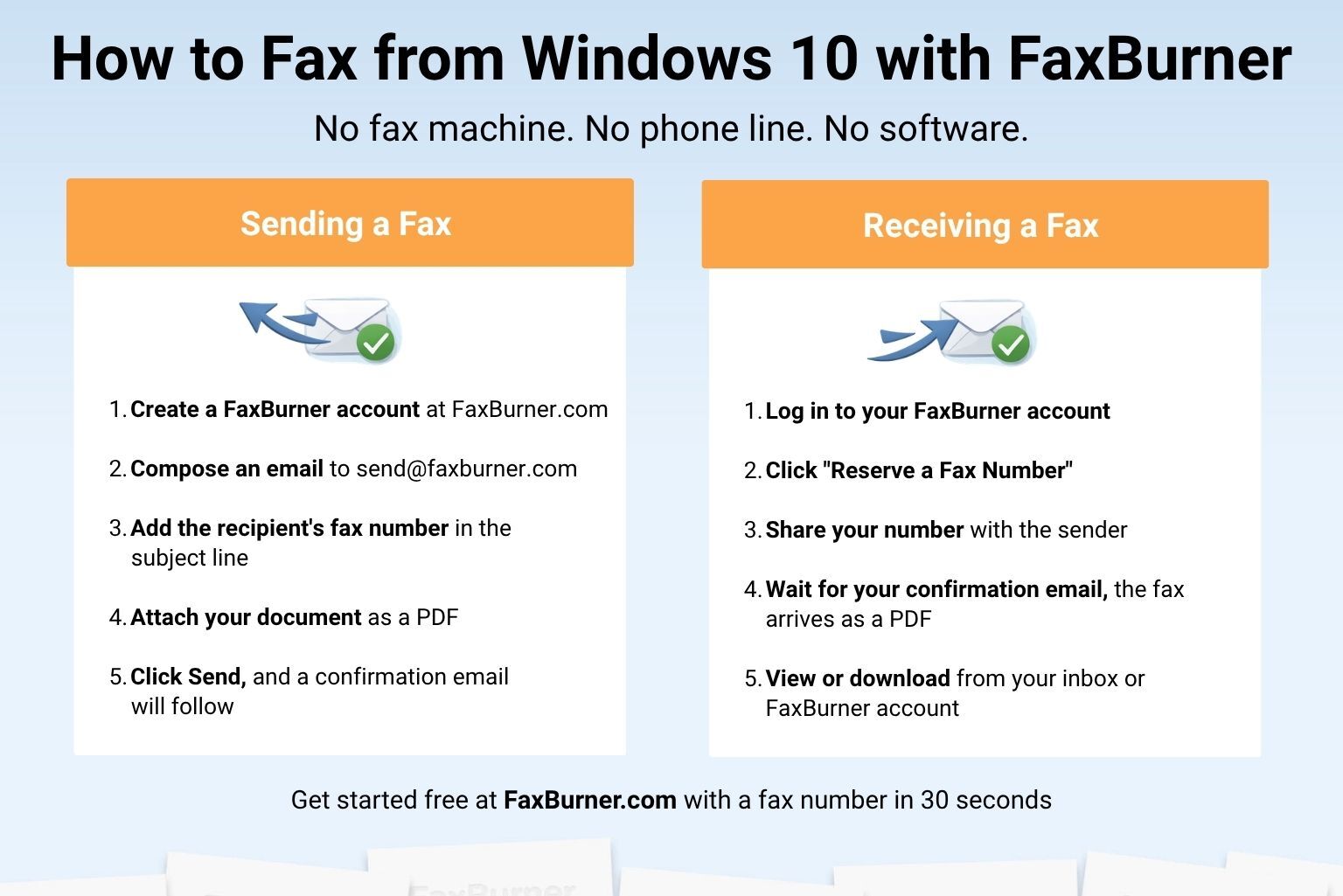
Method 2: Faxing via FaxBurner (No Hardware Needed)
FaxBurner works from any browser or email client on your Windows 10 computer. No fax modem, no phone line, no software to install.
Step 1: Set Up Your FaxBurner Account
FaxBurner offers three account types: Free, Professional, and Premier. The free option lets you send and receive fewer fax pages. The paid plans are designed for individuals and businesses with more regular faxing needs.
Step 2: Get Your Fax Number
Once registered, request a fax number for your account. Free users receive a disposable number valid for 24 hours. Premium account holders receive a permanent fax number.
Step 3: Send a Fax
- Compose an email to [email protected] from the email address used to create your account.
- Type the recipient’s fax number in the subject line.
- Add any cover letter text to the body of the email (optional).
- Attach your document as a PDF.
- Click “Send.” FaxBurner converts the email and attachment into a fax and delivers it. A confirmation email will follow.
How to Receive a Fax on Windows 10
Receiving a fax on your Windows 10 computer is even easier than sending one.
- Log in to your FaxBurner account and click the “Reserve a Fax Number” button.
- Share your fax number with whoever needs to send you a fax.
- When a fax arrives, you’ll receive a confirmation email. Open the PDF attachment in the email, or log in to your FaxBurner account to view it. Your faxes are stored in the cloud and accessible from any device.
Summing Up: How to Fax from Windows 10
And that’s a wrap. As you can see, faxing from Windows 10 is a piece of cake, especially when using an online fax service.
By using FaxBurner, Windows 10 users can quickly send and receive online faxes from their home or office computers. No fax machine, fax modem, or extra software.
And if you think sending faxes from a Windows 10 computer is easy, wait until you hear about faxing from your smartphone. Oh yes, with our free iPhone fax app, mobile users can send and receive faxes on the go, whenever and wherever they are!
Sounds too good to be true? Well, that’s FaxBurner for you.
