

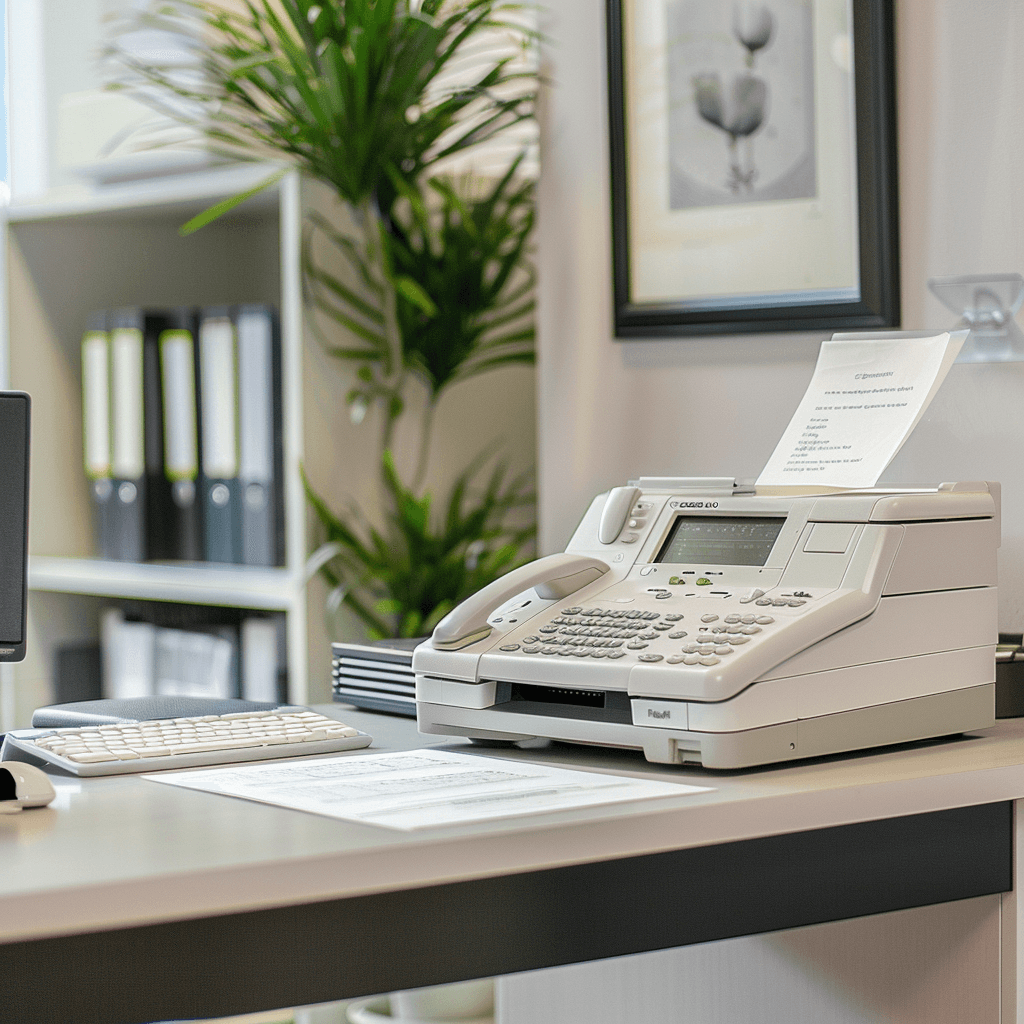
Summary
Setting up a fax machine is straightforward once you know the steps, but it does require a phone line, the right cables, toner, paper, and a correctly configured header before you can send your first page. Multifunction printers add a software layer on top of that. Once everything is in place, sending and receiving faxes is simple enough. For anyone who’d rather skip the hardware entirely, FaxBurner gets you faxing in 30 seconds with nothing to install.
How to Set up a Fax Machine?
| Time to Read | ~7 minutes |
| What You’ll Learn |
|
| Next Steps |
|
Fax machines have served us well over the decades, quietly taking up residence in the corner of most offices and workplaces, reliably sending and receiving important documents worldwide.
Inevitably, modern technology and the rise of digital communications have displaced the need for a fax machine, and now, fax machines are almost viewed in a nostalgic light. Most people have now made the switch to an online faxing service, reaping the benefits of a more economical and convenient means to send and receive documents instantly.
However, fax machines are still around, albeit in far fewer numbers, and while they’re rarely sold in physical stores, you can still buy a traditional landline fax machine, should you wish to.
Set up Basics
We’ve created this guide for the minority who prefer faxing ‘the old way,’ with a step-by-step process on how to set up a fax machine. Assuming you have unboxed the machine and have it plugged in, all you need to do is follow these simple steps, and we’ll fill your office or workplace with screechy, whirly noise in no time at all.
Towards the end of the guide, we’ll show you a much better way of transmitting your documents, in which you can effortlessly send a fax online – no setup required! For now, let’s take a look at those steps.
How to Set up a Fax Machine: Step-by-Step
In all probability, you’re working with a conventional, traditional fax machine. However, you may be using a printer to send faxes, assuming your machine is fax-ready. We shall account for both types below, starting with the traditional fax machine.
Traditional Fax Machine Setup
- Connect to a Power Source: Ensure your fax machine is connected to a stable power source. Place it on a stable, flat surface near both a power outlet and a telephone line jack.
- Attach the Telephone Line: Locate the telephone line jack on the fax machine, which is typically marked “Line.” Connect one end of the telephone cable to the jack and the other end to your wall telephone socket.
- Insert Printing Components: Depending on the model, this could involve installing a toner or ink cartridge and loading paper into the tray. Ensure you have the correct size and type of paper needed for faxing.
- Configure Fax Settings: Power on the machine, then use the control panel to enter setup mode. Here, you can input your fax number and adjust settings such as transmission speed, resolution, and ring count before the machine picks up.
- Set Up a Fax Header: Program your fax header to display your name or company and the fax number on each page sent. This can usually be done through the basic settings menu on the machine.
- Test the Connection: Send a test fax to a known fax number to ensure everything is functioning properly. You should also ask someone to send you a fax to confirm both sending and receiving capabilities.
Setting Up a Printer for Faxing
- Check for Fax Capability: Ensure your printer includes fax functions, typically indicated by a ‘Fax’ button or option in the model’s menu.
- Connect to Telephone Line: Similar to a traditional fax machine, connect your printer’s fax port to a telephone wall jack using a telephone line cable.
- Install Required Software: Some printers require specific software or drivers for fax functionality. Install any software that comes with your printer or download it from the manufacturer’s website.
- Configure Through Printer Software: Access the fax settings via the printer’s software on your computer. Enter the necessary information, such as your fax number and preferences for receiving faxes.
- Load Paper and Test: Make sure your printer has paper loaded. Send a test fax to check that the setup is correct. Also, receive a test fax to ensure the printer is ready to handle incoming faxes.
How to Send and Receive a Fax Once You’re Set Up
Once your machine is configured and tested, here’s how to use it day-to-day.
Sending a Fax
- Have the recipient’s fax number ready. Make sure you have the correct number before you start.
- Gather and arrange your pages. Put them in the order you want the recipient to see them.
- Fill out a cover sheet if needed. Include the recipient’s name, fax number, phone number, and the number of pages being sent.
- Place documents in the document feeder tray. Make sure they’re aligned correctly.
- Dial the recipient’s fax number and press “Fax” or “Send.” Each page will be scanned into memory. You’ll hear connection tones as the machines communicate, and a confirmation will appear in the display window or print once the send is complete.
Receiving a Fax
- Confirm the machine is connected to a power source and a working phone line. Either a regular telephone line or a dedicated fax line will work.
- Check ink levels. Most machines alert you when toner is low, but a visual check before receiving an important document is a good habit.
- Load and fan the paper. Run your thumb along the bottom of the stack of paper to separate the sheets. This reduces the risk of paper jams.
- If the fax machine shares a line with a phone, let it ring. Don’t pick up. The fax machine needs to handle the incoming connection itself.
- Wait for the machine to print the document automatically. Check the cover sheet to confirm you received all expected pages. For important documents, call the sender to confirm receipt.
Troubleshooting Fax Machine Setup Issues
As you can see, knowing how to set up a fax machine is quite easy to grasp, and there really isn’t much to it. However, issues can arise owing to a variety of factors. With that in mind, please refer to the following troubleshooting tips should you find yourself unable to proceed with setting up a fax machine.
No Dial Tone: Check if the telephone line is properly connected to the correct port on your fax machine. Make certain that the line is active and not being used by another device.
Poor Quality Faxes: If faxes are arriving blurry or incomplete, check the scanner glass for any dirt or smudges. Also, adjust the resolution settings, which can often be set too low by default.
Fax Not Sending: Make sure the number being dialed is correct and includes long-distance codes if necessary, then verify that your fax machine is set to the correct mode for dialing out, especially if it shares a line with other devices.
Error Messages: Refer to your user manual for specific error codes. Most machines provide troubleshooting steps tailored to each error.
Paper Jams: Regularly check and clear any paper jams; a surprisingly frequent issue in fax machines. Make sure you’re using the appropriate paper type and that it’s loaded correctly.
Delayed Sending or Receiving: If your fax machine experiences delays, check the fax memory. Machines with low memory can struggle with large documents. Try breaking your fax into smaller segments or reducing the resolution for sending.
Frequent Disconnections During Transmission: Check that there are no interruptions in the phone line. This can be caused by poor line quality or interference from other electronic devices. Try relocating the fax machine or using a different phone line.
A Popular Fax Machine Alternative
There’s a far simpler option available to you. While traditional faxing is a dependable, efficient way to transmit your documents, it’s slightly antiquated in this day and age.
An easier option is to use a more modern fax service, like FaxBurner, where you can send and receive faxes directly from your iPhone, iPad, or any computer. The result is the same, but the setup and process are streamlined.
Just download the FaxBurner app, and you’ll quickly have a free fax number at your disposal, available for 24 hours. If you need to keep the number indefinitely, you can select one of our affordable premium plans.
Fax Machine vs. FaxBurner: A Quick Comparison
Traditional fax machines get the job done, but the setup, hardware, and ongoing costs add up. Here’s how they compare to online faxing:
| Factor | Traditional Fax Machine | FaxBurner (Online Fax) |
|---|---|---|
| Hardware | Required. Fax machine or MFP | None |
| Phone line | Required. Dedicated or shared | Not required |
| Paper and toner | Ongoing consumable cost | Not required |
| Setup time | 30 minutes or more | 30 seconds |
| Fax from mobile | No | Yes, iPhone app or from your email |
| Cloud storage | No | Yes, all faxes are stored automatically |
| Cost | Hardware + phone line + consumables | Free and month-to-month plans available |
Bottom Line
Because of new technology and the availability of online fax services, fax machines aren’t as commonly used as they once were. However, knowing how to use a fax machine can definitely come in handy. You don’t need to be an expert who understands every feature on the device; just the how-to of receiving and sending a fax should be enough.
If you aren’t a fan of traditional fax machines but still want to make the most of faxing, digital fax is the way to go. The FaxBurner mobile fax app eliminates the need for a fax machine, using the convenience of email and/or your smartphone or browser instead.
FaxBurner is easy to use, reliable, and secure. Receive and send documents on the go without a fax line, just by using your phone or browser!
Frequently Asked Questions
How to send a fax from a fax machine?
To send a fax from a fax machine, first connect it to a power source and phone line. Place your documents in the feeder, dial the recipient’s fax number, and press “Send.”
How do you use a fax machine?
To use a fax machine, ensure it’s plugged in and connected to a phone line. Insert your documents, enter the recipient’s fax number, and press the send button. To receive faxes, make sure the machine has paper and toner and is set to automatic receive mode.
How to set up a fax machine?
Connect it to a power source and phone line, load paper into the tray, install toner or ink, and configure your fax number and header through the settings menu. Send a test fax to confirm everything is working.
Can you fax multiple pages at once?
Yes, you can fax multiple pages at once by placing them in the document feeder. The machine will scan and send each page in sequence to the recipient.
What’s the difference between a fax line and a phone line?
A fax line and a phone line use the same network infrastructure, but a fax line is configured to receive data signals from other fax machines rather than voice calls. Some setups share one line for both, though a dedicated line for each is recommended for businesses.
