

Free Fax Cover Sheet Templates
Free PDF, Google Docs, Word, and Pages fax cover sheet templates for print or download. New sheets added in January 2026.
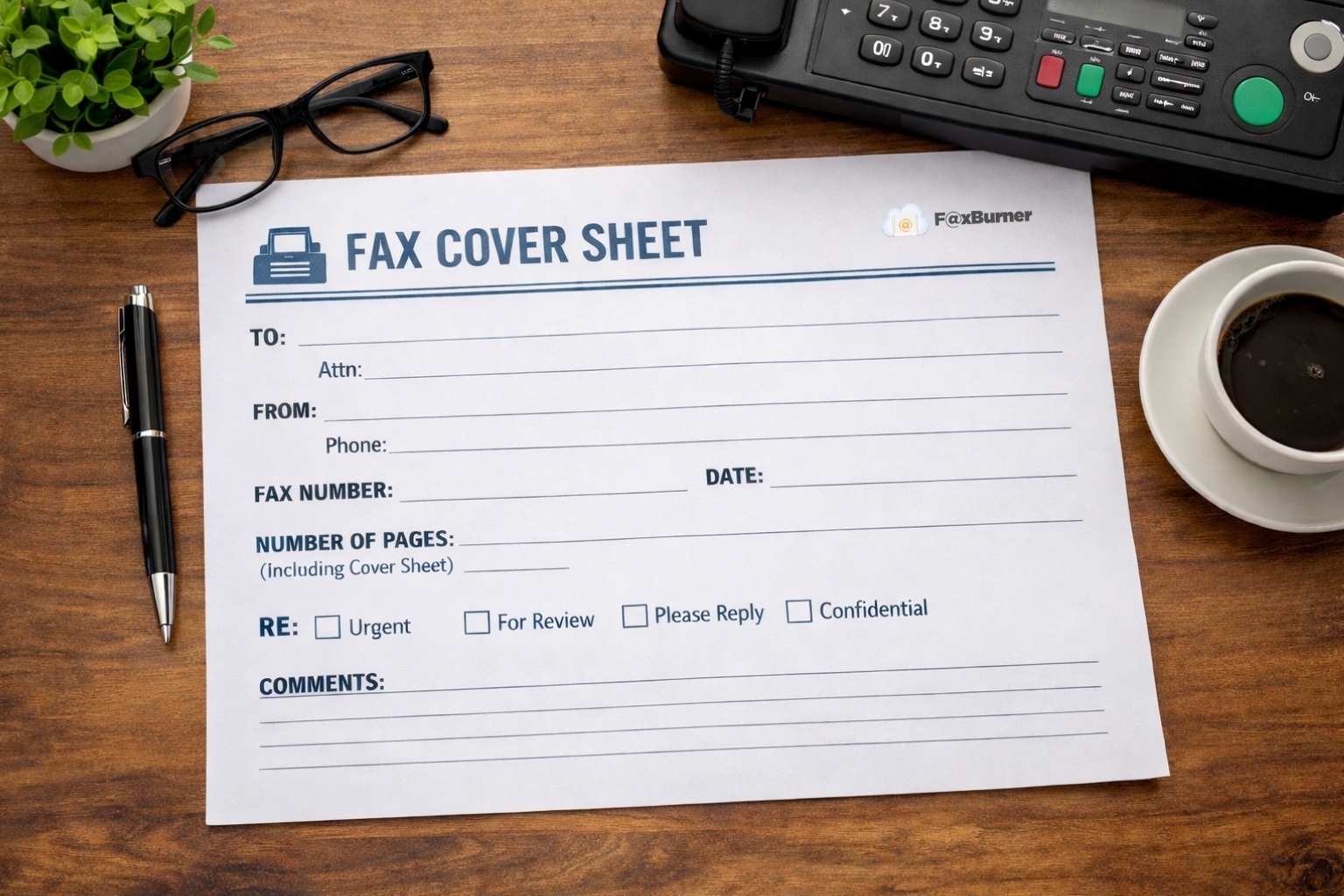
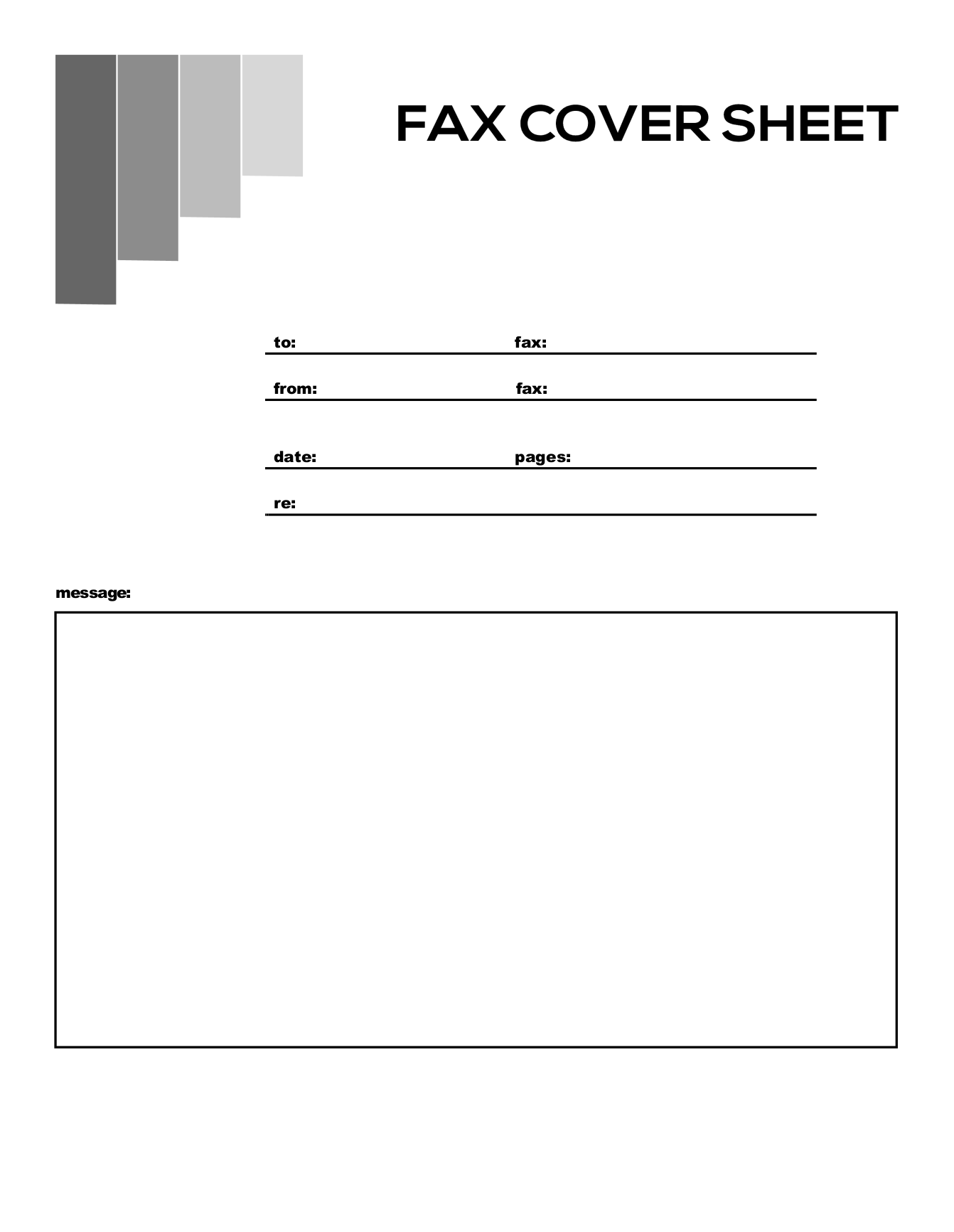
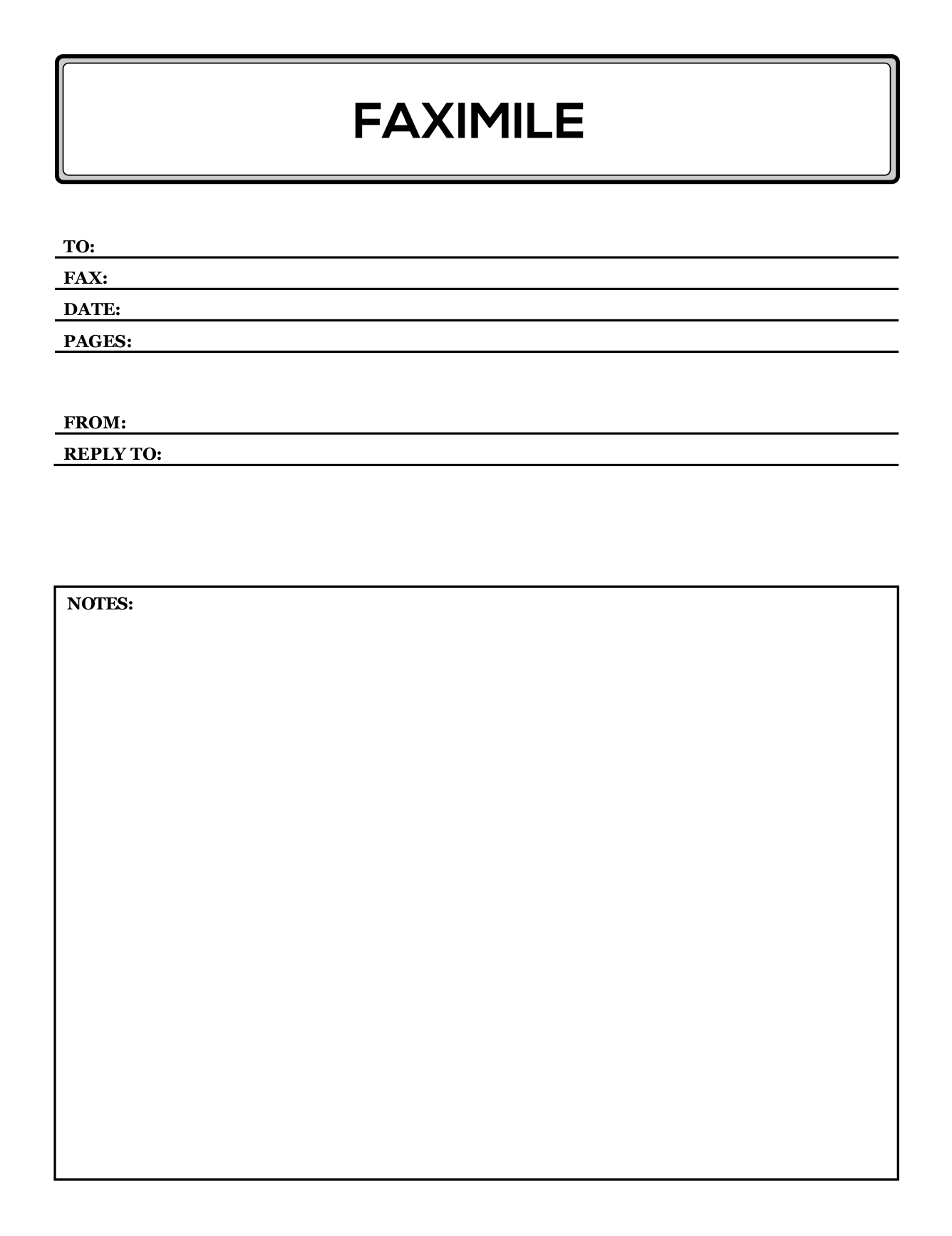
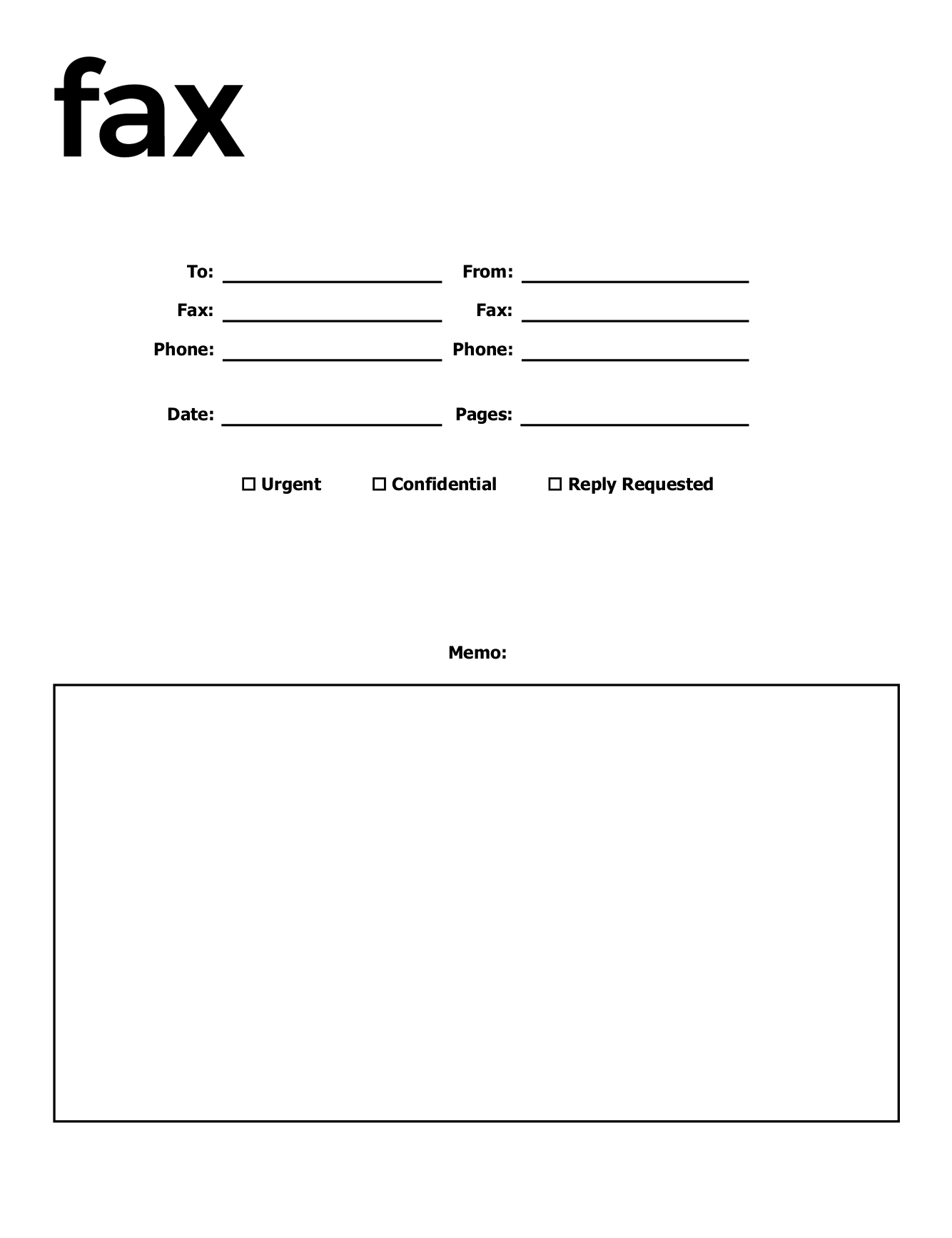
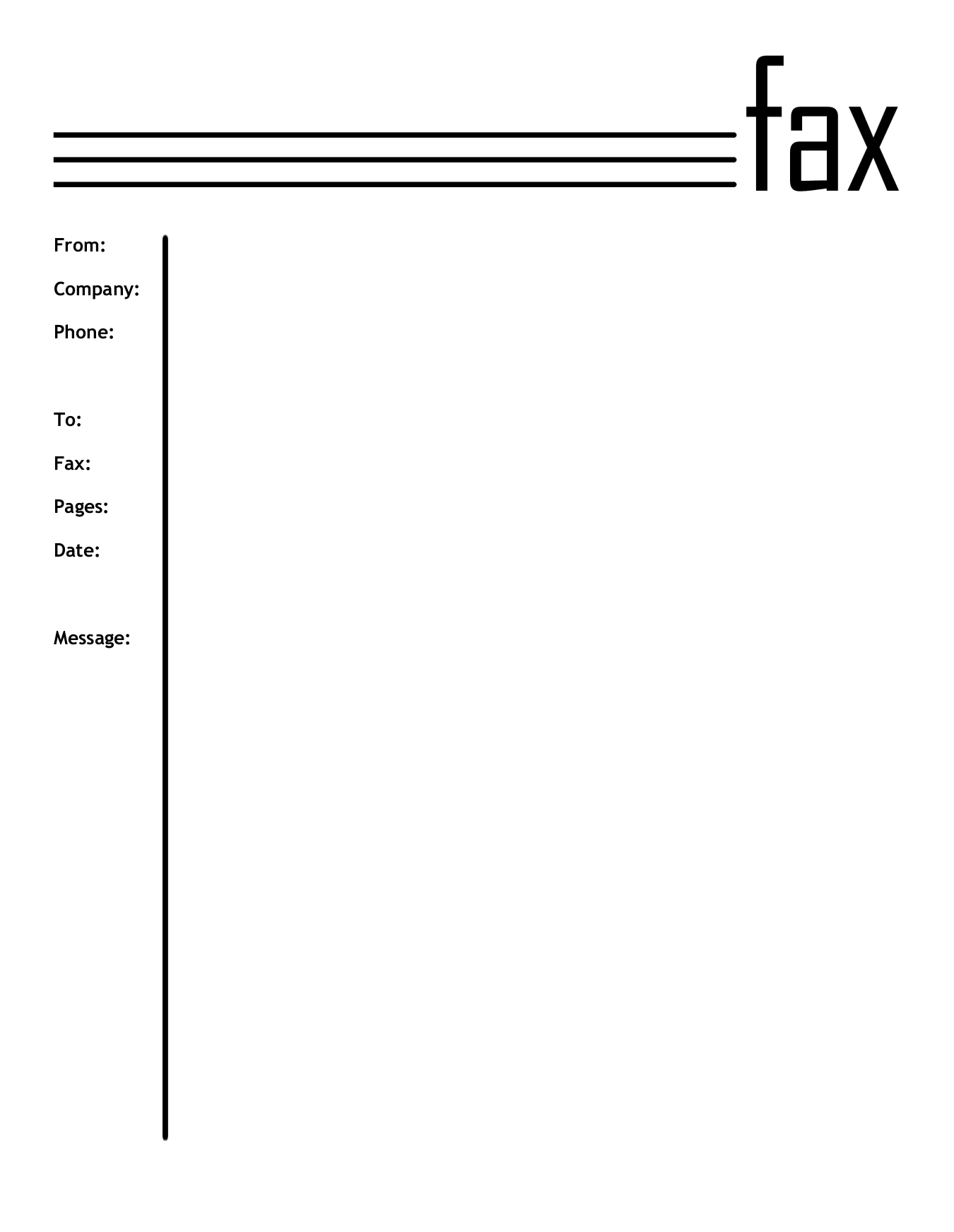
These blank fax cover sheets and templates are available free for your use. Each is available as a Microsoft Word, Google Docs, PDF, or Apple Pages template. Print or download our modern cover sheet designs and edit or customize as needed.
Basic Fax Cover Sheets
These cover sheets are very generic and are good for any situation.
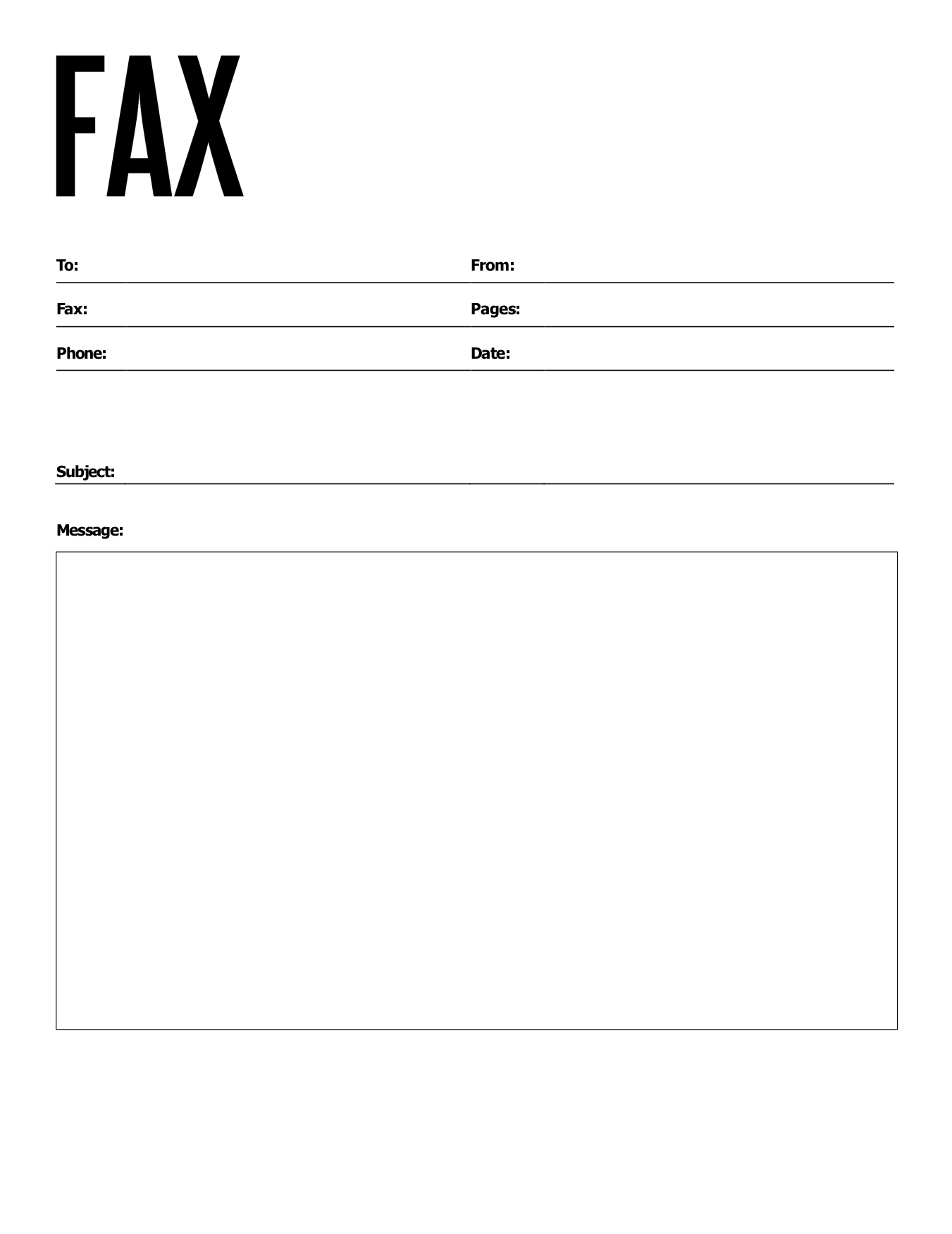
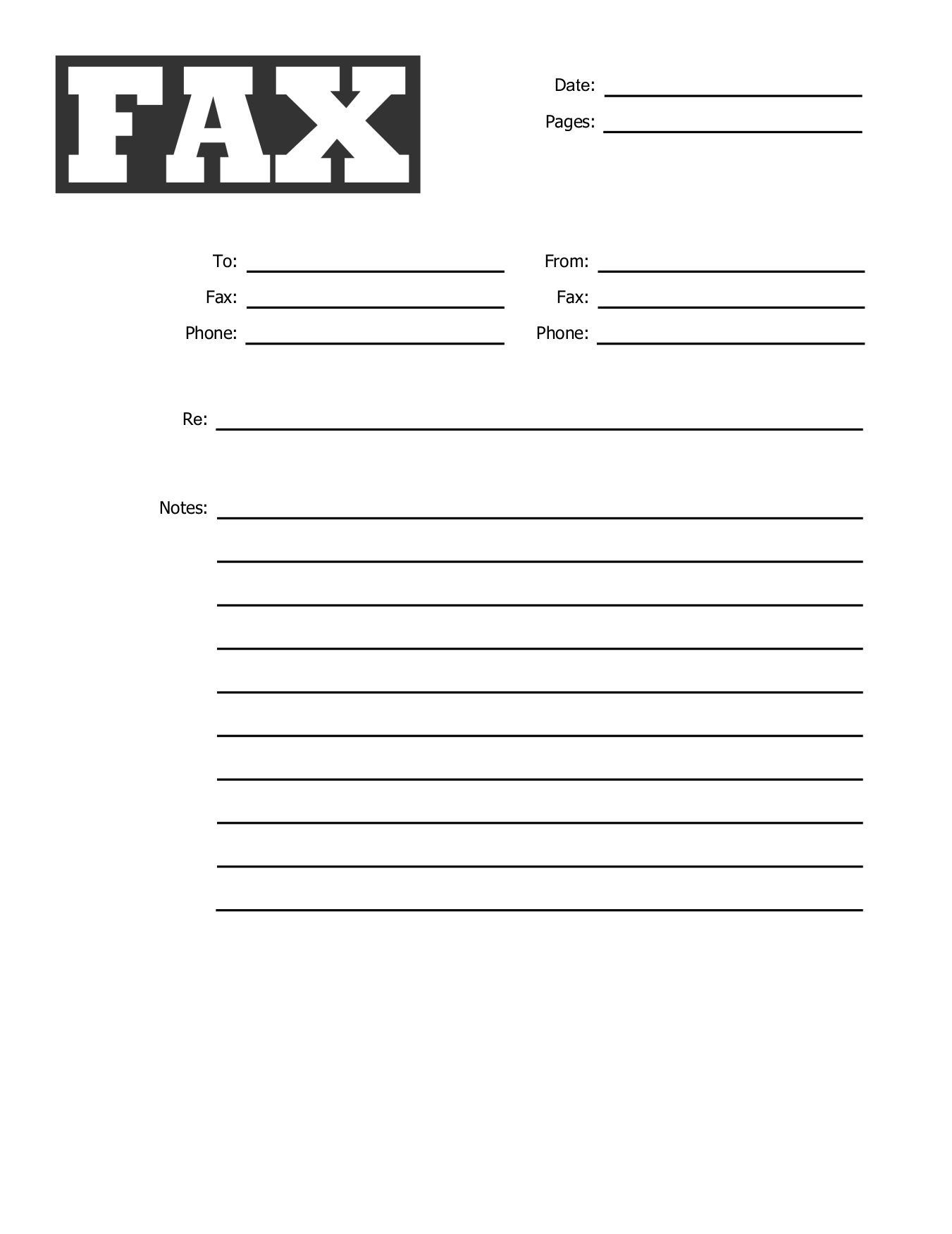
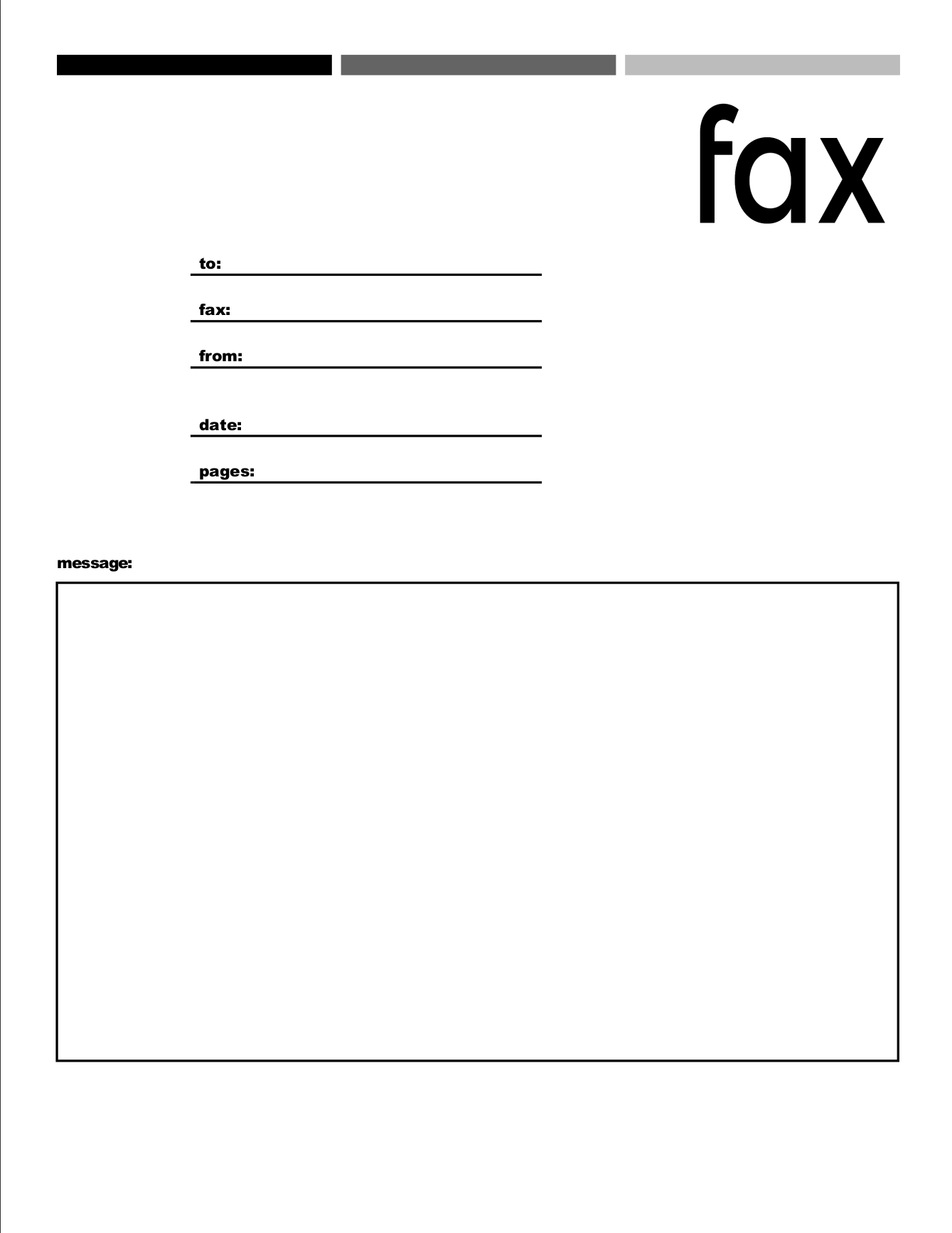
Confidential Fax Cover Sheets
Use these templates if your fax has privacy requirements or is confidential.
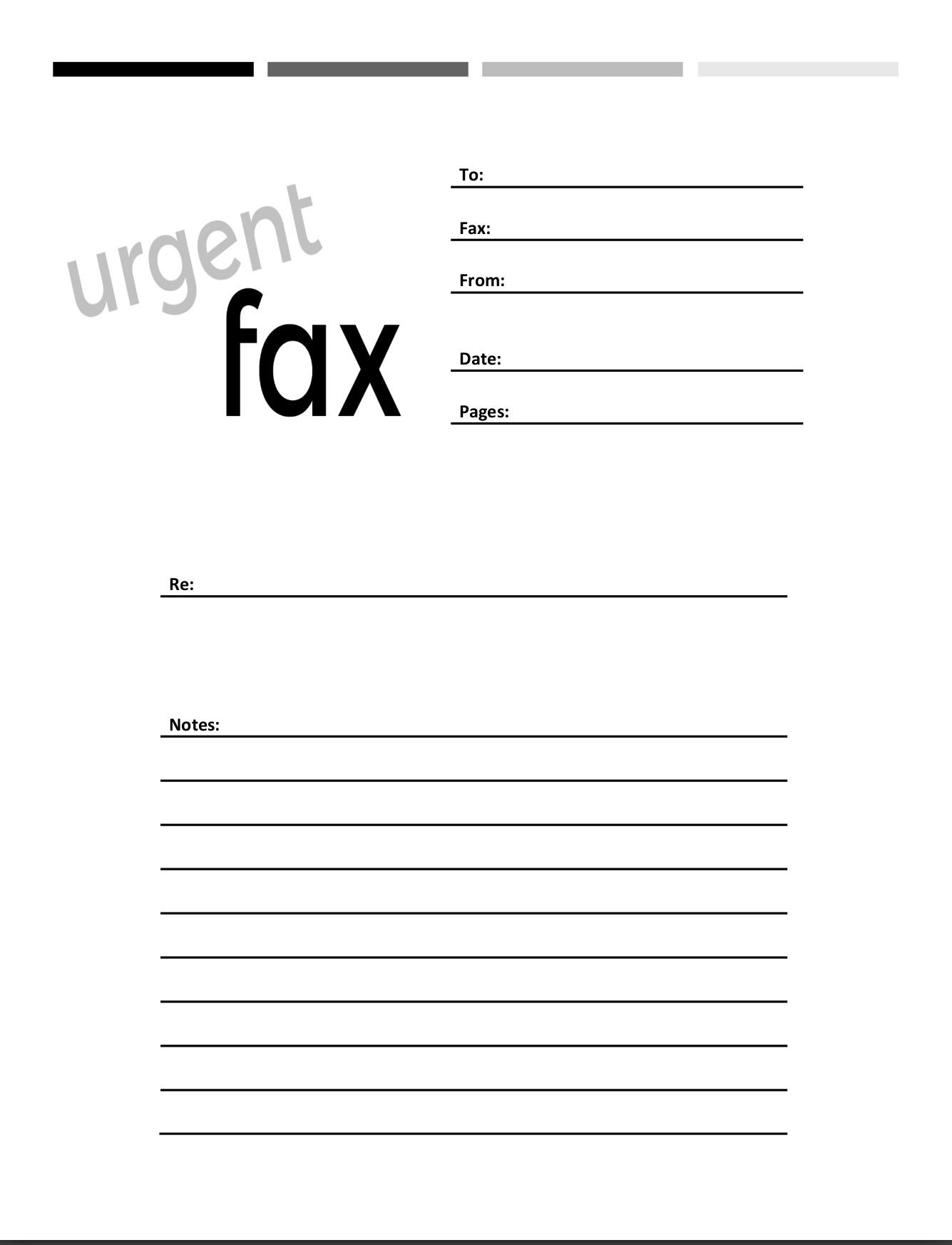
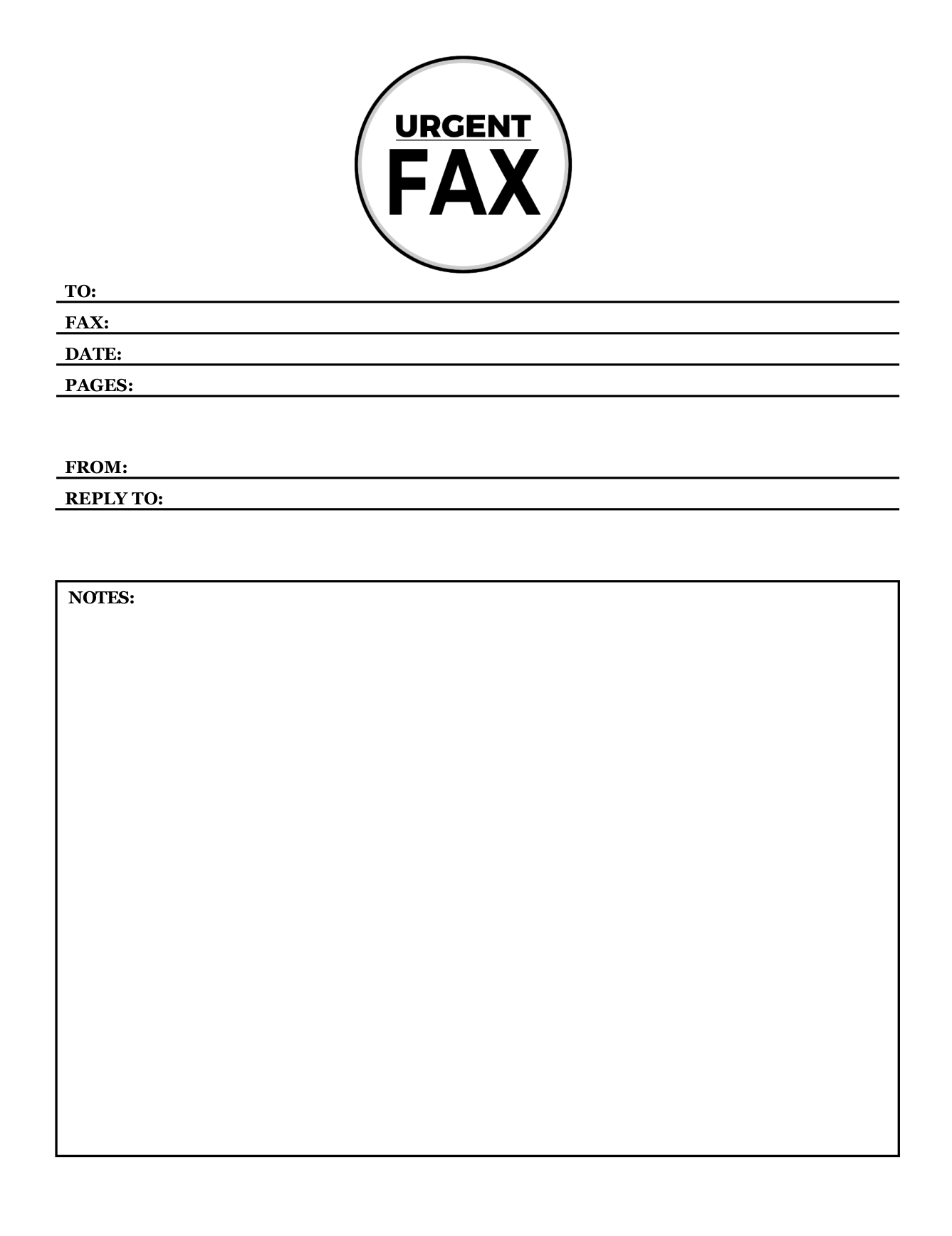
Urgent Fax Cover Sheets
Use these if your fax is urgent.
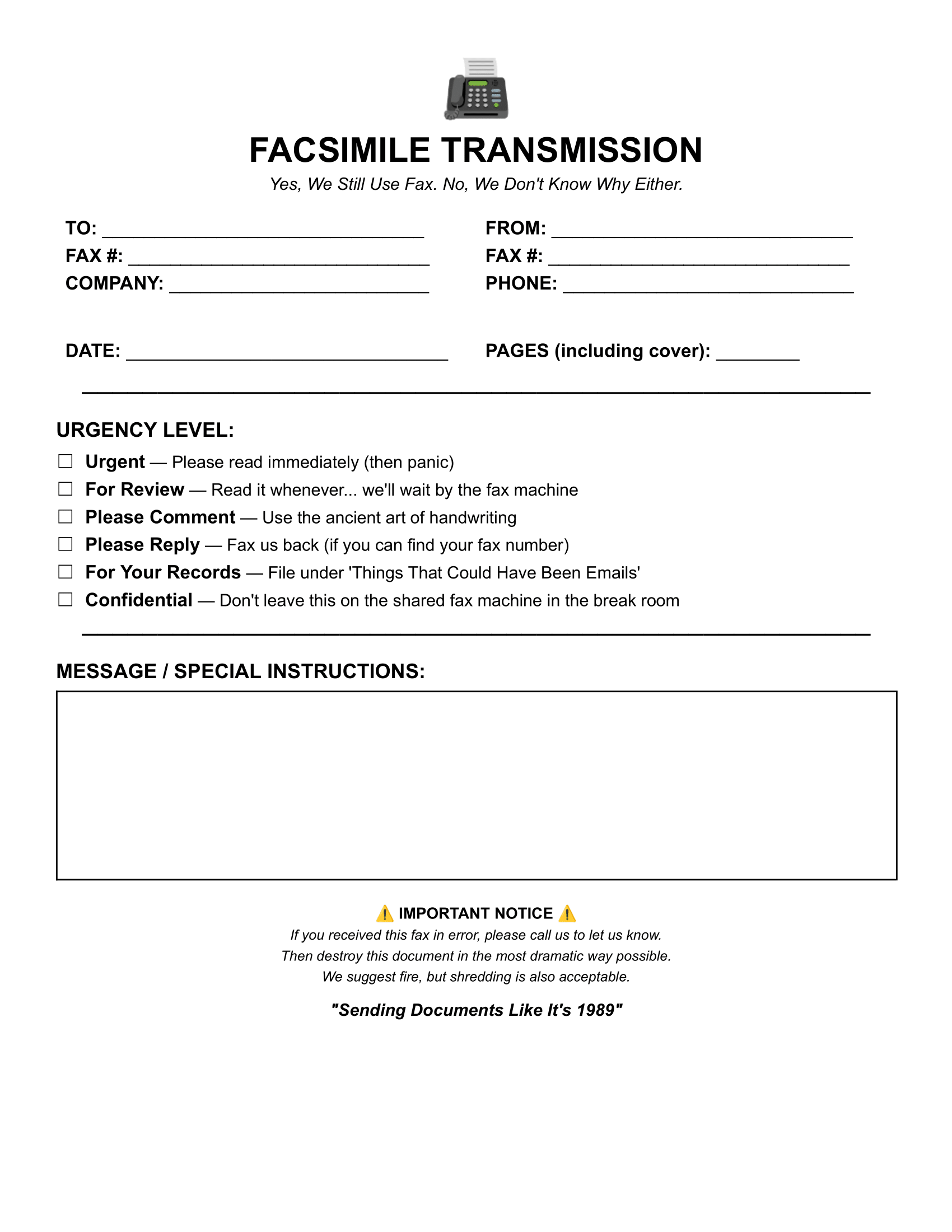
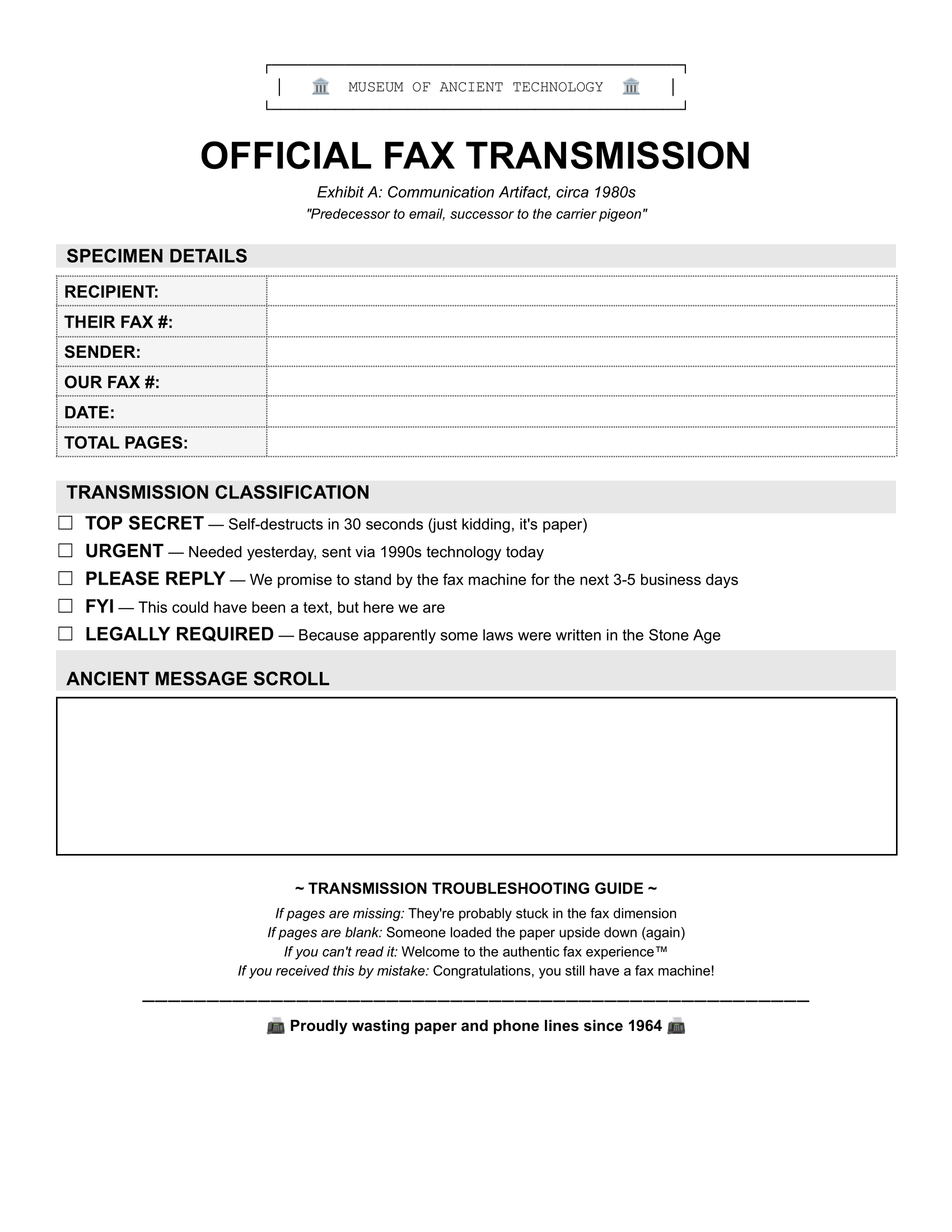
Funny Fax Cover Sheets
Sometimes it’s fun to share a laugh via fax.
Create your FaxBurner account for free
From sign-up to faxing in less than 60 seconds, including your personal fax number.
Frequently Asked Questions
Do I need a fax cover sheet?
Yes, but not always. A fax cover sheet is required in many healthcare and legal contexts where confidentiality matters. Even when not required, a cover sheet helps ensure your fax reaches the right person, especially in offices where multiple people share a fax machine. It also lets the recipient know how many pages to expect, so they can confirm everything came through.
Skip the cover sheet only if you’re sending to someone who’s expecting your fax and you’ve confirmed the number is correct. For anything involving sensitive information, legal documents, or medical records, always include one.
Are fax cover sheets required for medical or legal documents?
For medical documents containing patient information, HIPAA doesn’t technically mandate a cover sheet, but it strongly recommends one. A HIPAA-compliant fax cover sheet includes a confidentiality disclaimer that protects you if the fax goes to the wrong number. Most healthcare organizations require them as standard policy.
For legal documents, the same logic applies. Attorney-client privilege and confidential business information should always be sent with a cover sheet that includes a confidentiality notice. Many courts and law firms won’t accept faxed documents without one.
What should I write in the message section?
Keep it brief and useful. The message section should tell the recipient:
- What the document is (e.g., “Signed contract for review”)
- What action you need from them, if any (e.g., “Please sign and return by Friday”)
- Any context that helps them process it quickly (e.g., “Re: Case #12345” or “Attn: Billing Department”)
One to three sentences is plenty. If you need to communicate more than that, include it in the documents themselves rather than cramming it onto the cover sheet.
What's the difference between confidential and urgent cover sheets?
A confidential cover sheet includes a privacy disclaimer—typically a statement that the fax contains sensitive information intended only for the recipient, and that anyone who receives it in error should destroy it or contact the sender. Use this for medical records, financial documents, HR paperwork, legal correspondence, or anything you wouldn’t want a random person reading.
An urgent cover sheet visually signals that the fax needs immediate attention—usually with bold text, red coloring, or an “URGENT” label at the top. Use this when time matters: deadline-sensitive documents, emergency requests, or anything that shouldn’t sit in someone’s inbox.
You can use both: a confidential fax can also be urgent. Choose a template that fits your primary need, or add an “URGENT” note to a confidential template.
Can I edit these templates on my phone?
Yes. Download the Google Docs version and open it in the Google Docs app on your phone. You can fill in all the fields, then export as PDF when you’re ready to send.
For the Word version, you can use the Microsoft Word mobile app or upload the file to Google Drive and open it with Google Docs.
The PDF versions are best for printing and filling in by hand, but some PDF apps (like Adobe Acrobat Reader) let you add text to fillable fields on mobile.
How do I add my company logo to a fax cover sheet?
In Microsoft Word: Open the template, click where you want the logo (usually the top left or center), go to Insert > Pictures, and select your logo file. Resize and position as needed.
In Google Docs: Open the template, click Insert > Image > Upload from computer, select your logo, then click on it to resize and drag it into position.
For best results, use a logo file with a transparent background (PNG format). Place it in the header area so it appears professional without crowding the form fields.
How many pages should a fax cover sheet be?
The cover sheet should only ever be one page.
Does the cover sheet count toward the total page count?
Yes. When you fill in the “Number of Pages” field, include the cover sheet in your count. If you’re sending a 3-page document plus the cover sheet, write “4” in the page count field. This helps the recipient confirm they received everything.
How do I send a fax if I don't have a fax machine?
You can send faxes directly from your smartphone or email using an online fax service, like FaxBurner. Here’s how it works:
- Download your cover sheet and fill it out
- Save it as a PDF along with your documents
- Upload to a fax app or attach to an email
- Enter the recipient’s fax number and hit send
FaxBurner lets you send faxes free from your iPhone or any email address (no fax machines or phone lines required). Your documents are delivered to the recipient’s fax machine just like a traditional fax.
What file format should I use for my fax cover sheet?
It depends on how you want to use it:
- PDF – Best for printing and filling in by hand. Also works if you have a PDF editor that lets you type into the fields.
- Word (.docx) – Best for editing on a computer. Easy to customize, add your logo, and save as PDF when done.
- Google Docs – Best for editing on any device, including your phone. No software to install—just open in your browser or the Docs app.
- Pages – Best for Mac users who prefer Apple’s word processor.
If you’re not sure, go with Google Docs—it’s free, works everywhere, and makes it easy to export as PDF when you’re ready to send.
Can I reuse the same cover sheet for multiple faxes?
Yes, but update the details each time. Save a version with your permanent information already filled in (your name, company, fax number, phone number) as your personal template. Then just update the recipient details, date, page count, and message for each fax.
If you’re faxing frequently, create a few variations: one for internal use, one for clients, one for vendors—each with the appropriate level of formality and any standard messaging you reuse.
Start faxing for free
From sign-up to faxing in less than 60 seconds.